Configuring the Render Template
This article is about the Render Template and how to configure it for a new project.
Our Baked render_template.nk File
The render_template.nk file can be found at P:\Admin\project-setup\ and needs to live in your global/configs/nuketranscoder folder for each project.
Here's the root node graph:
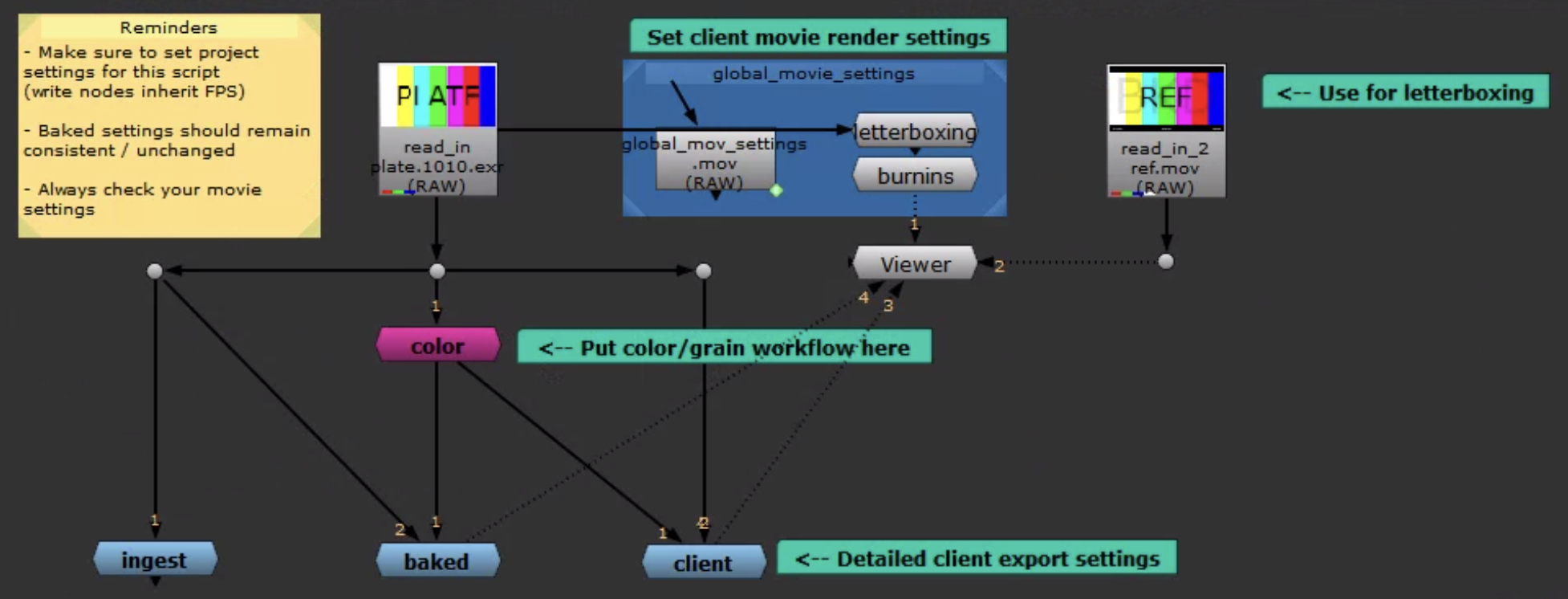
It's pretty well labeled and anyone with a nuke background should be able to parse what's going on. Something to note however, is how the global_movie_settings work.
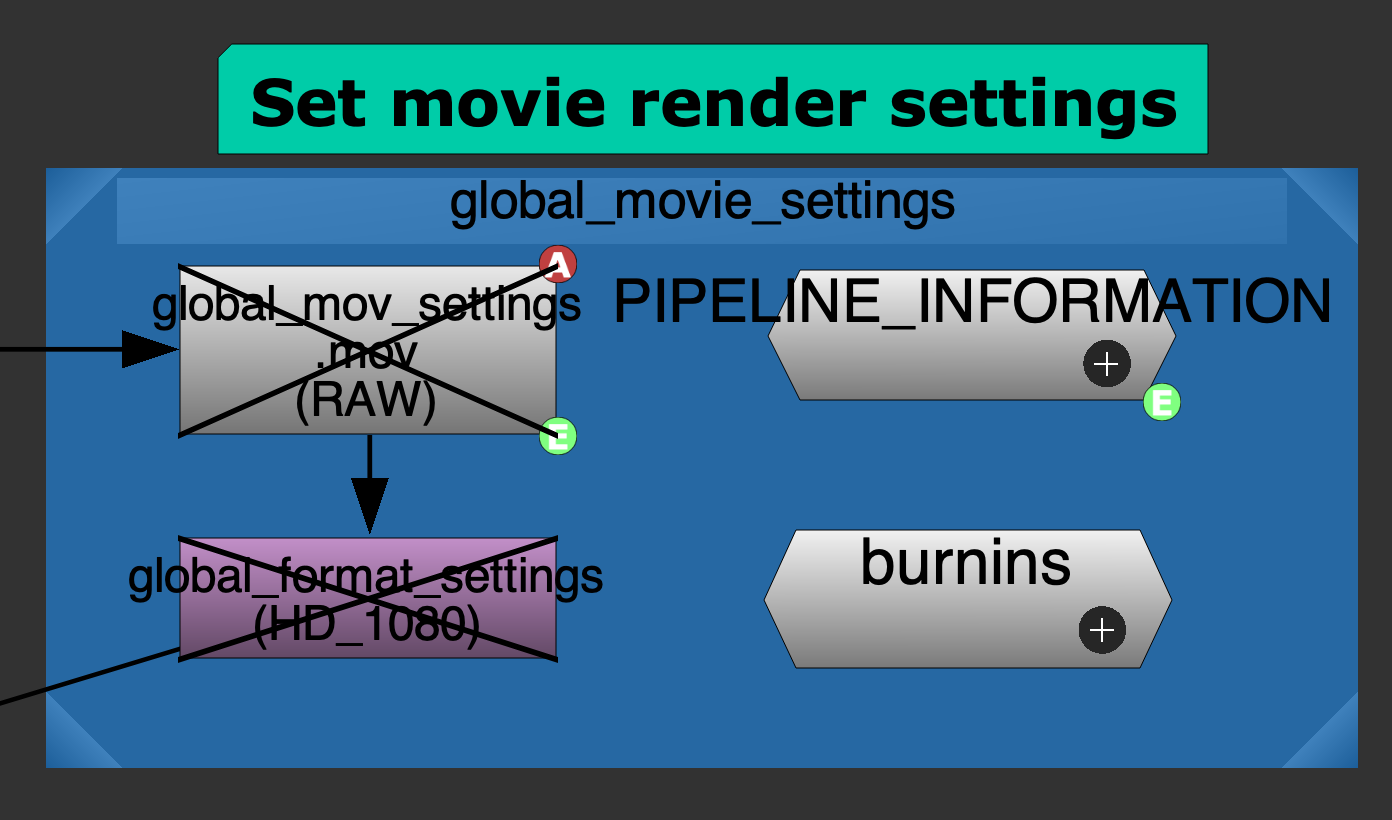
These settings funnel down to a bunch of different write nodes that go along different trees representing the different flavors which can be generated by the script. The FPS on the global_mov_settings node itself is linked to the Project Settings - which is inherited by other movie write nodes in the script. Codec and Codec Profile are also inherited by several movie write nodes.
The letterboxing and burnin nodes are pretty straighforward and also inherited from previous iterations of render templates. These two nodes pass their settings on to nodes in the client group as well.
A full list of nodes is available [here]
Let's go through the groups.
color
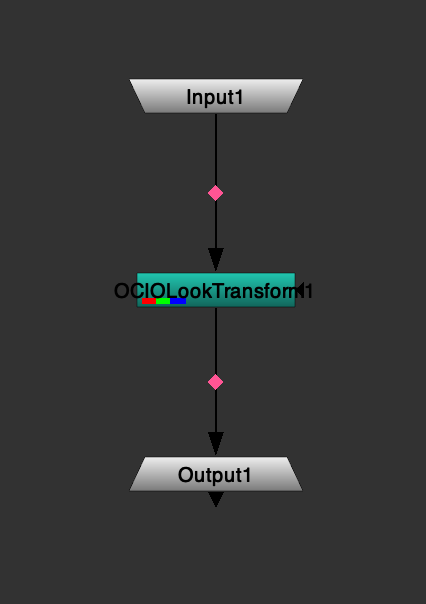
This is where the color workflow goes.
ingest
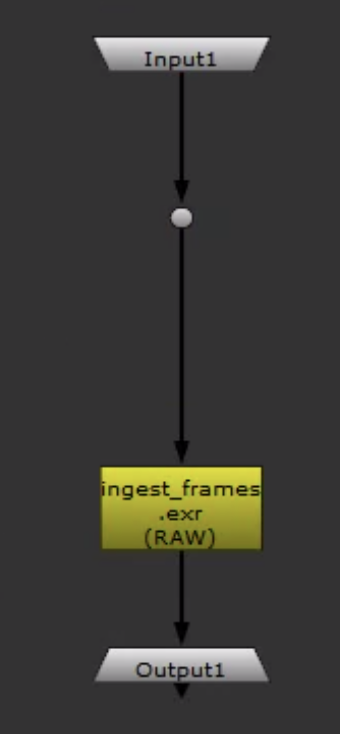
This is really just a node in a group for organization. You should adjust the settings here if for some reason we need to turn off dwaa/dwab compression for working exrs and or we need to change the format for working media.
baked
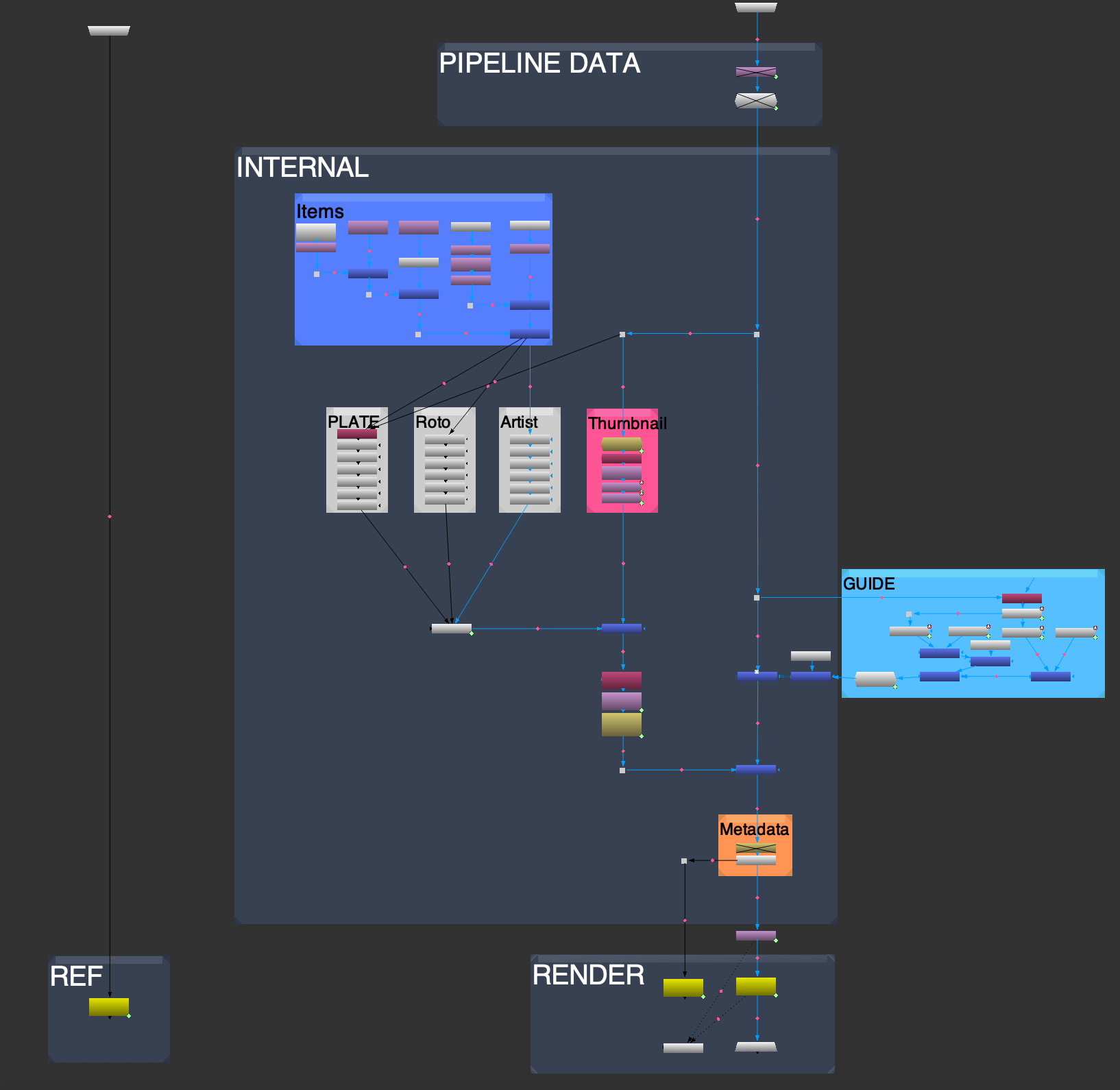
This is where the different types of media for internal baked purposes is created. These settings should mostly stay the same across projects. One question to discuss is where to force a resolution or keep same as source. Same as source is super flexible and it's my preference and it's set that way by default.
client
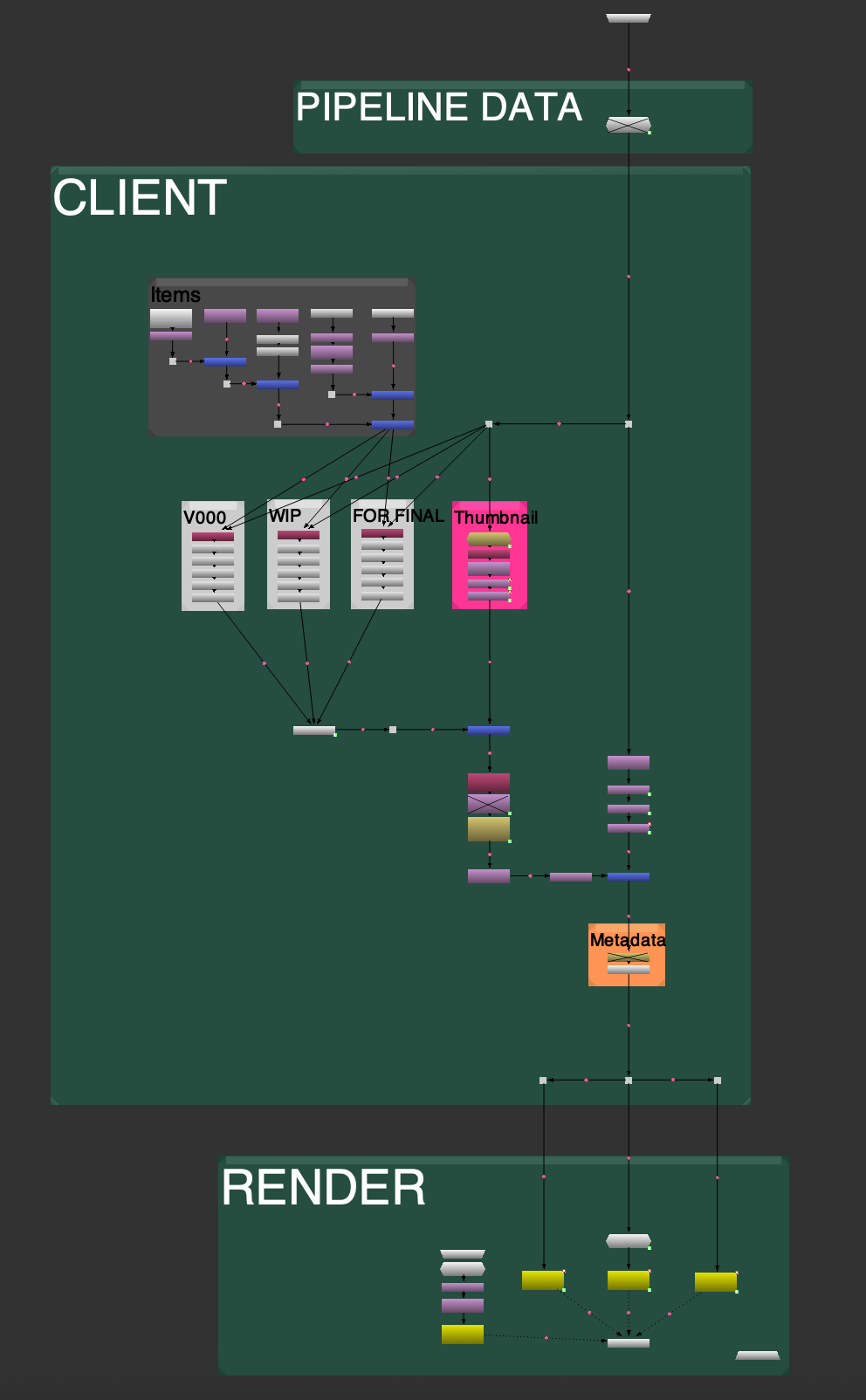
These are the various client requested flavors. Green is "As Final", Purple is for v000s and Yellow is for "WIPs".
burnins
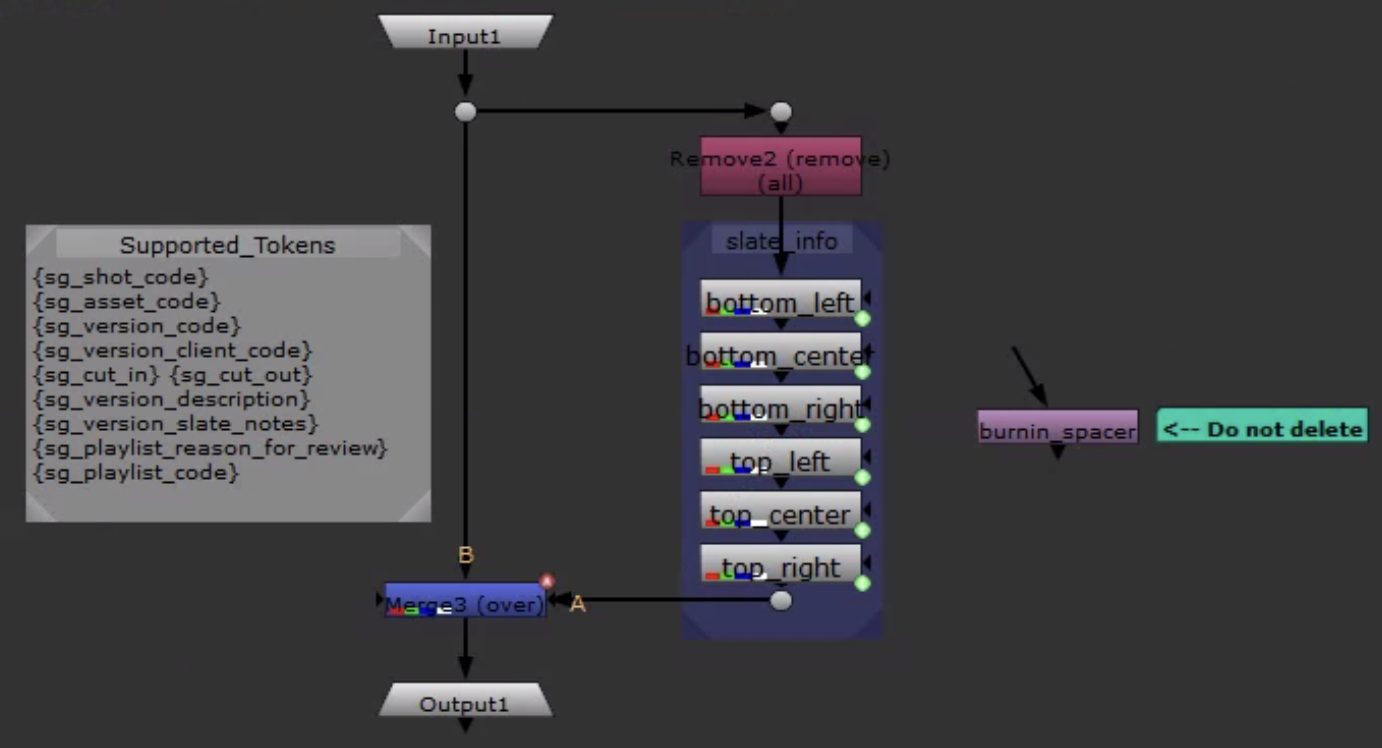
This is where burnins can be adjusted. I recommend doing this on the root node graph in the group node under the global_movie_settings backdrop. The other burnin
Cross-platform Compatibility
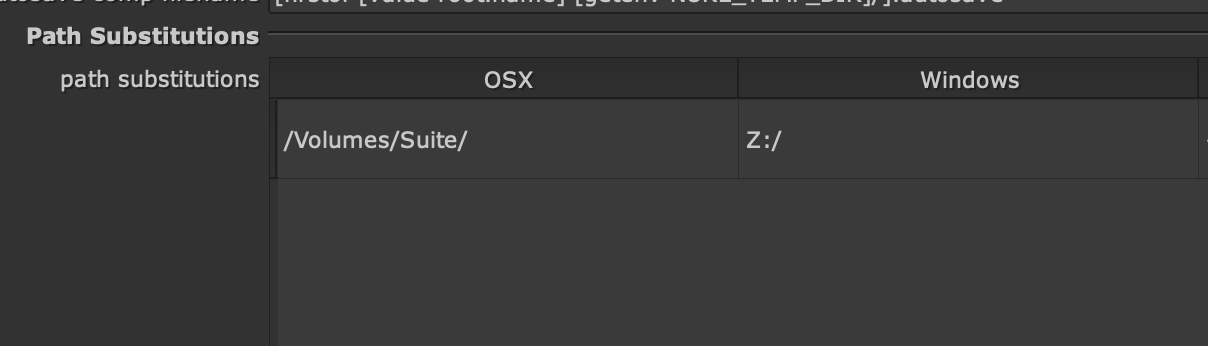
In order to ensure cross-platform compatibility, all read nodes built into the script need to start at the root Z:/ for our mounted cloud storage. MAC users can set their Nuke Preferences for Path Replacement to substitute Z:\ for /Volumes/Suite