OCIO Color Workflow
The Pipeline Toolkit tools from Nodes & Layers have built in support for OCIO and context switching. This means that switching between shots will automatically change the OCIO environment and provide LUTs and CDL’s for the current shot.
The Configuration
By default, when starting up a project in Flow Production Tracking, our config looks for a file at the following location:
[project_root]/global/configs/ocio/config.ocio
To learn more about OCIO and how to create configuration files, please visit the OpenColorIO website.
Nuke
1. Open Nuke through Flow Production Tracking and open a file associated with a shot from the Flow Production Tracking -> File Open window.
2. Select your Show Look or Shot Look from the Viewer Process dropdown
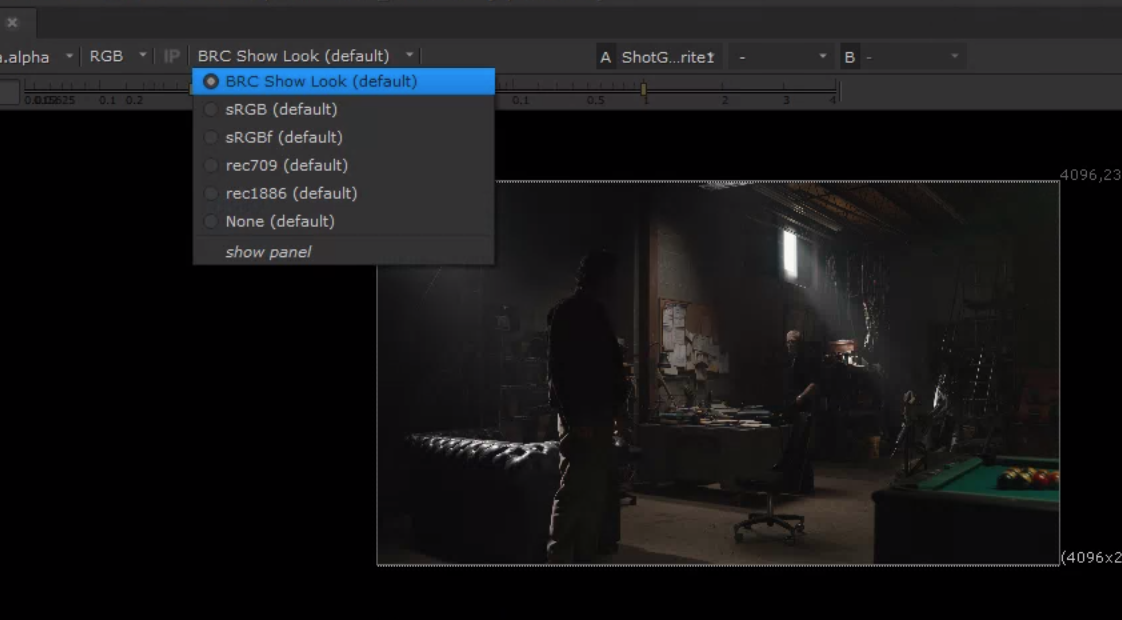
Make sure you don't have color info applied manually when you go to render your scene! This is all managed by Export Profiles.
Maya
1. Open Maya through Flow Production Tracking and open a file associated with a Shot or Asset from the Flow Production Tracking → File Open window.
2. Select your Show Look or Shot Look from the Viewer Transform dropdown
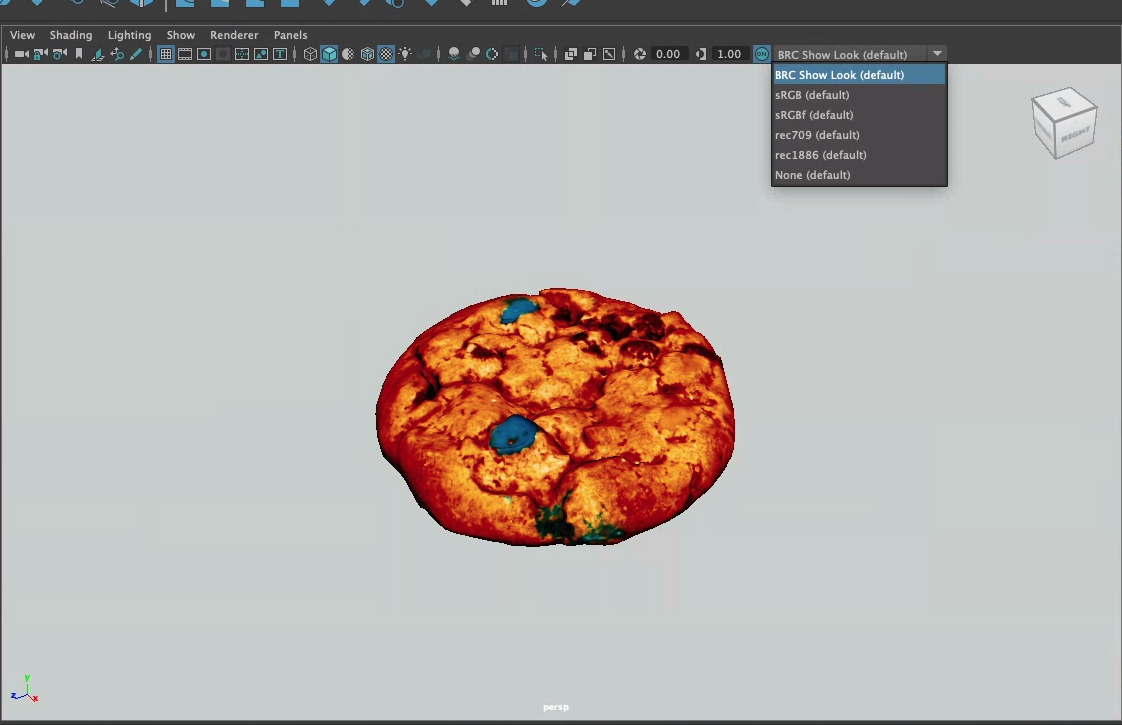
Troubleshooting: If for any reason either drop down doesn't appear correctly, then either the shot support files haven't been published correctly, or the OCIO config is missing something. Please reach out to the supervisor or coordinator on your show.
Bypassing Color (when baking in is needed)
Render and Publish with Color Baked In for Review
- Please make sure you are using the proper OCIO color nodes to load in your LUT and CDL from Flow PTR.
- Render your comp with the color baked in, and read it back in.
- Disable the color node you used to add baked in color.
- Render a second "Element" EXR with color not baked in, ensure the files are named
DIin your "output" box and read back in. - Select both your Element and your SG_Write EXRs and hit publish.
- Make sure "submit for review" is UNCHECKED for your
_DI_EXR and@nocolortag is in your version description.

What Happens Next
- Your render will go through with no added color. Once approved for client send, a new QT will be rendered also with no added color.
- At some point, the coordinator will need a re-render of your exr for DI. They can search your shot with the
_DI_name and replace the path_to_frames in the version from there for DI renders. I'll make it a button soon.