External Assets Workflow
Assets must be treated separately from the shot workflow when preparing a project. However, the concept is similar.
-
Assets, like edit REFs, must be placed under the 1_I0 folder and copied over to 2_WORK\2_ASSETS folder before publishing. This is important because the publish relies on the path that it is published from, unlike Ingest that creates a new file with a new path.
-
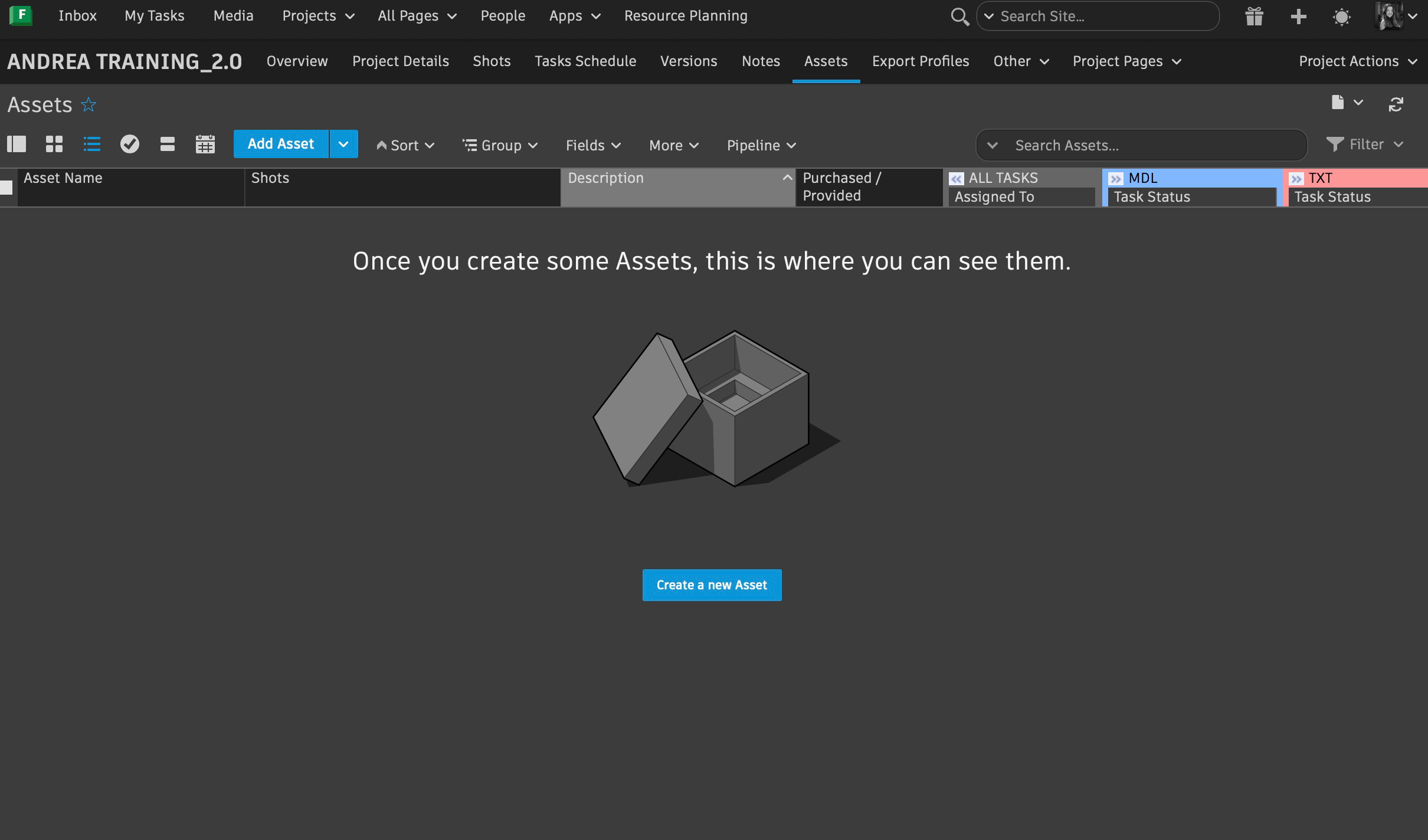
Navigate to the page for your project in Flow Production Tracking and click the Assets tab, then Select Add Asset or create a new asset when starting from scratch
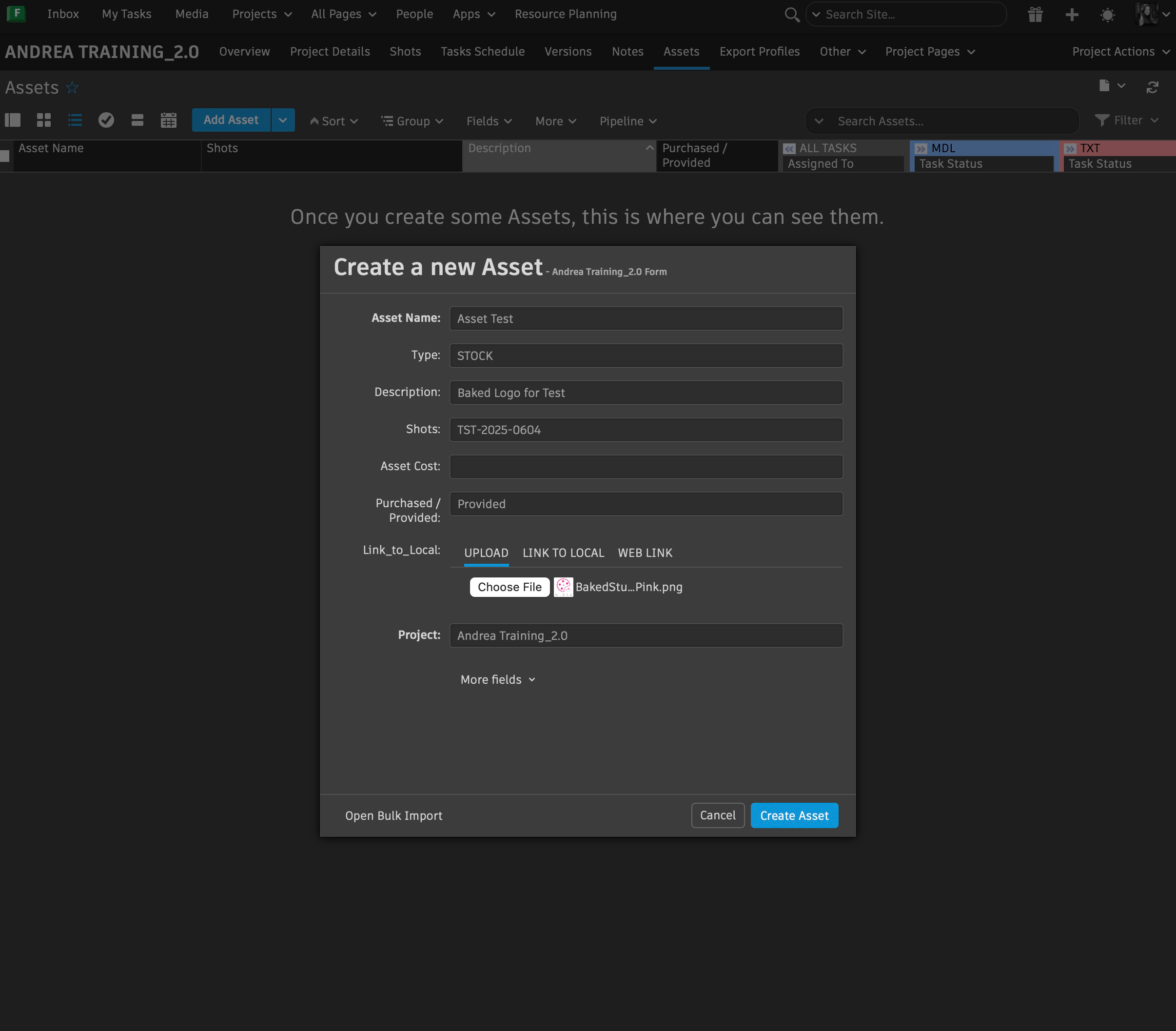
- Create the asset and fill out the fields. (Important to include the Asset Type to specify which folder it will live once it is published)
Create a new asset for each category (Animation/Graphics/Model/Textures...etc.)Mainly for organization purposes in SG.
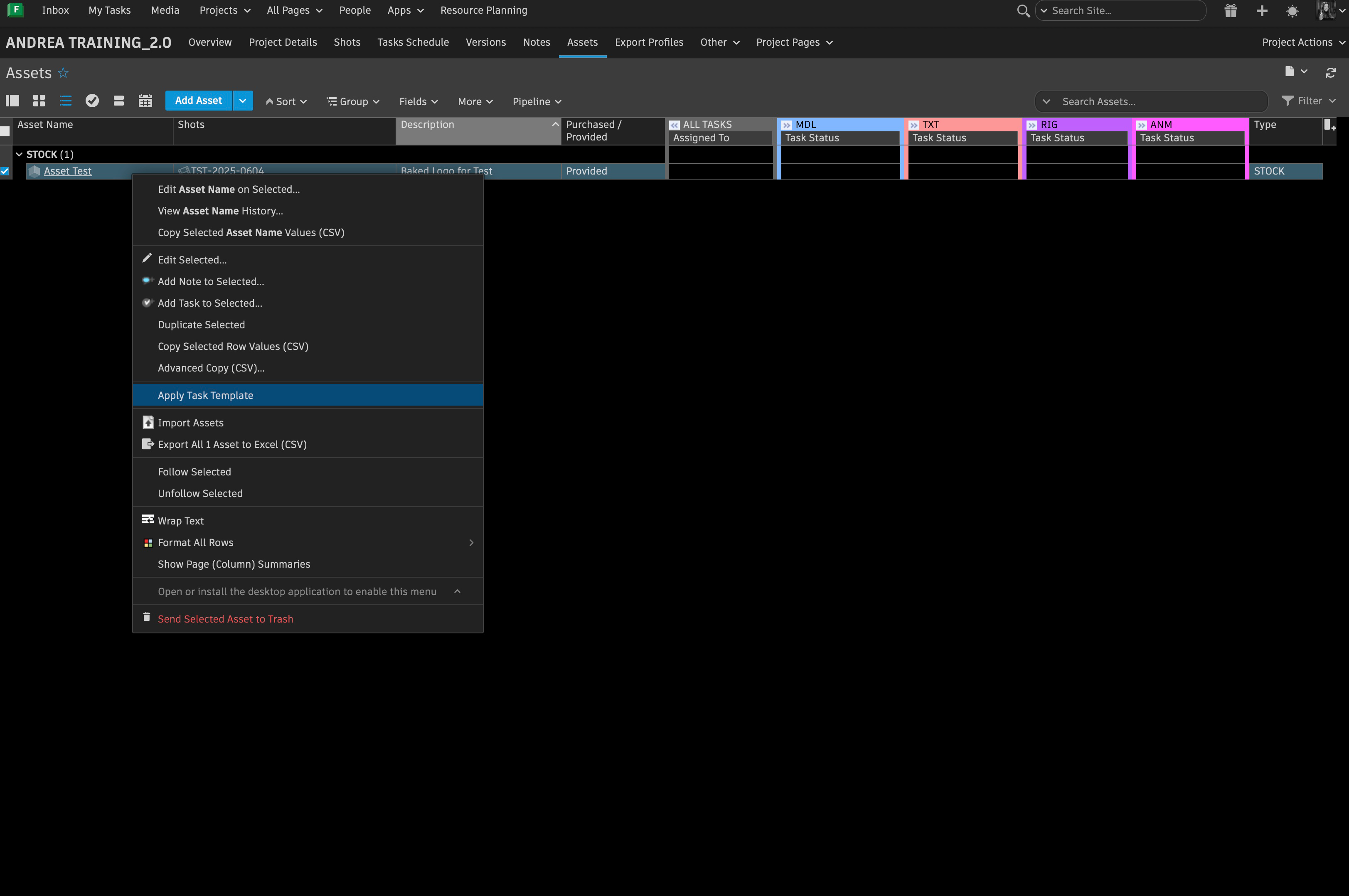
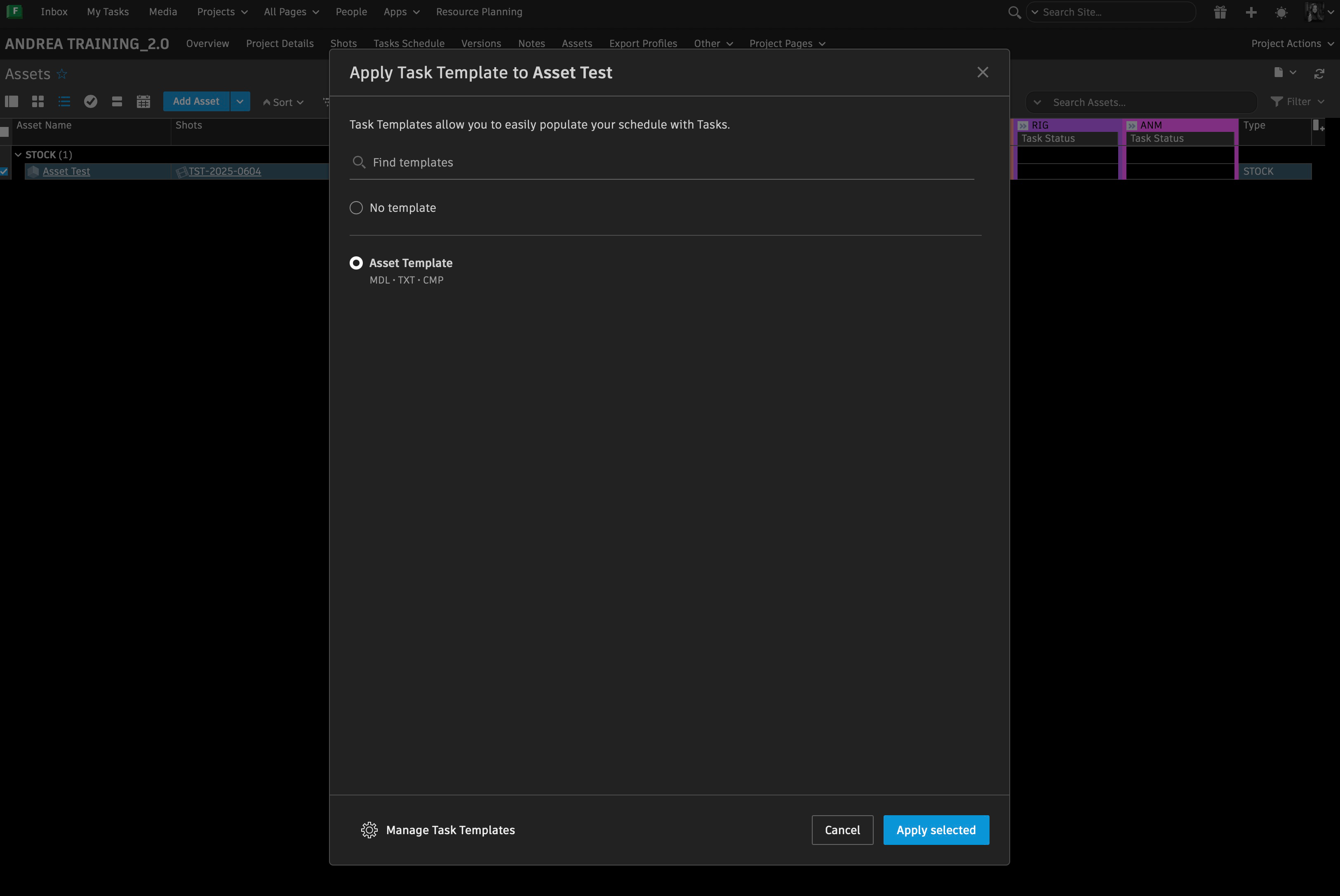
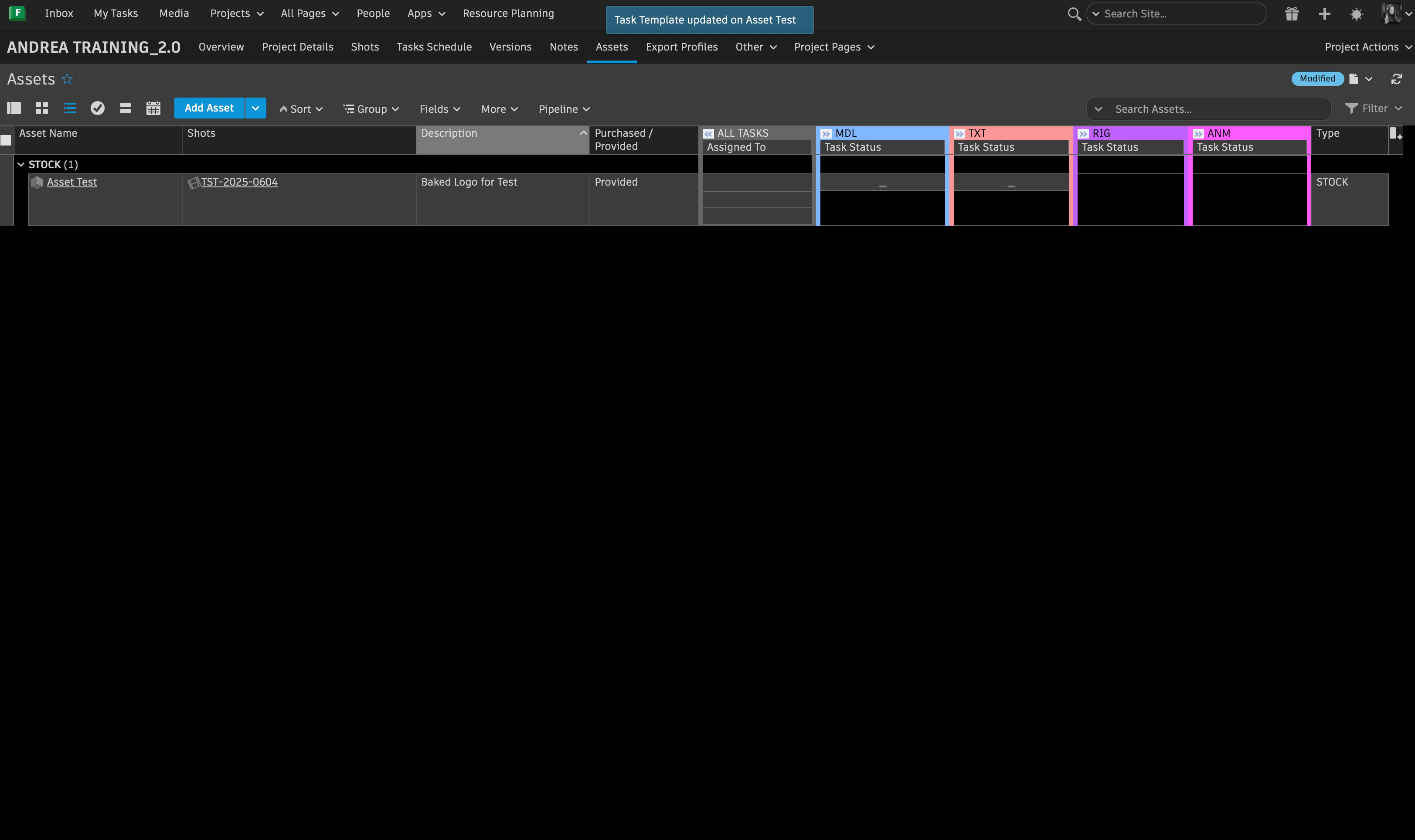
- Right click the asset and select Apply Task Template. This step is necesarry so the asset can be published in the respective shot.
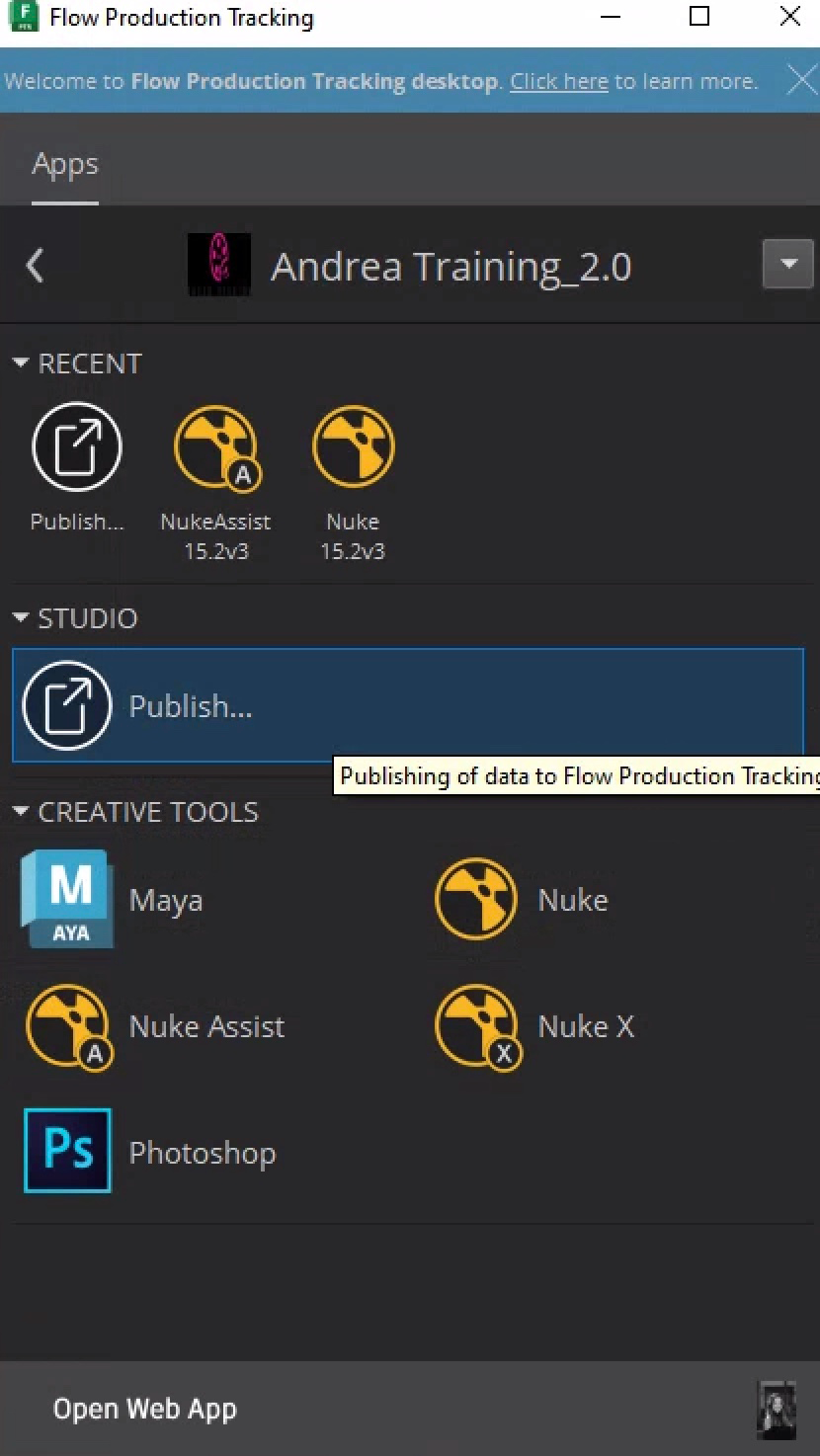
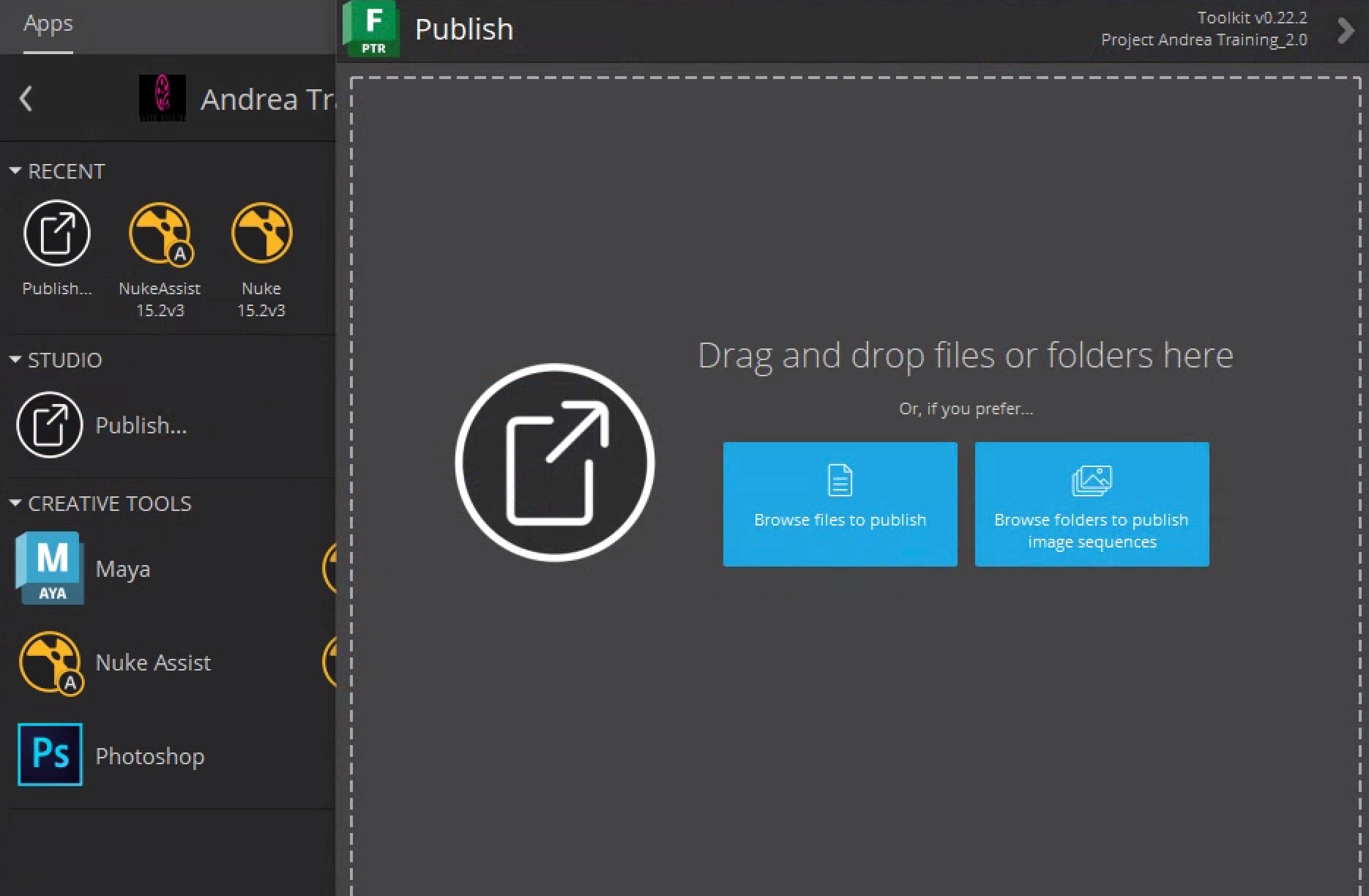
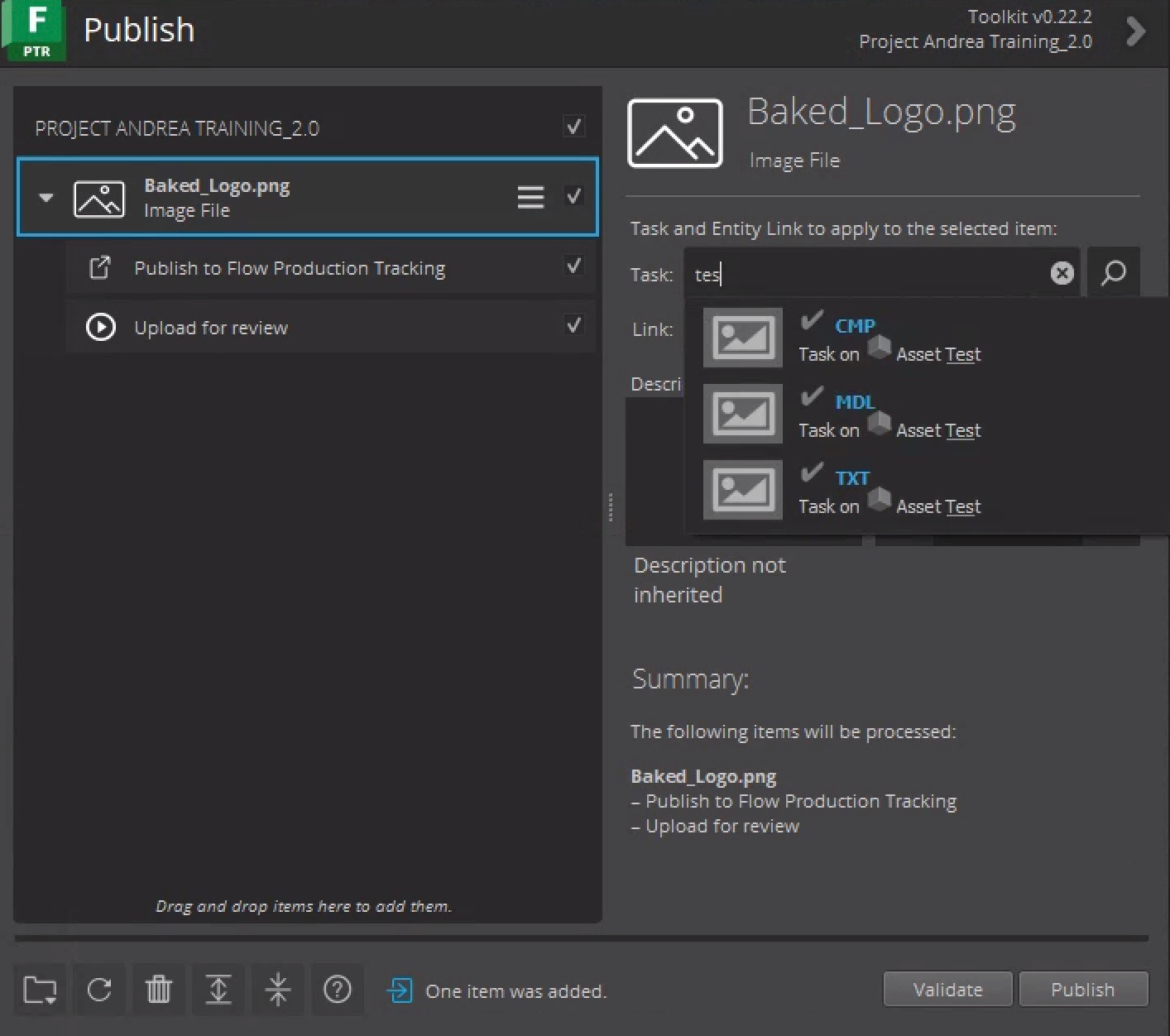
- Publish the asset from the Flow Production Tracking Desktop app. Make sure the asset is assigned to the right Asset Task for the shot, along with a description before publishing.
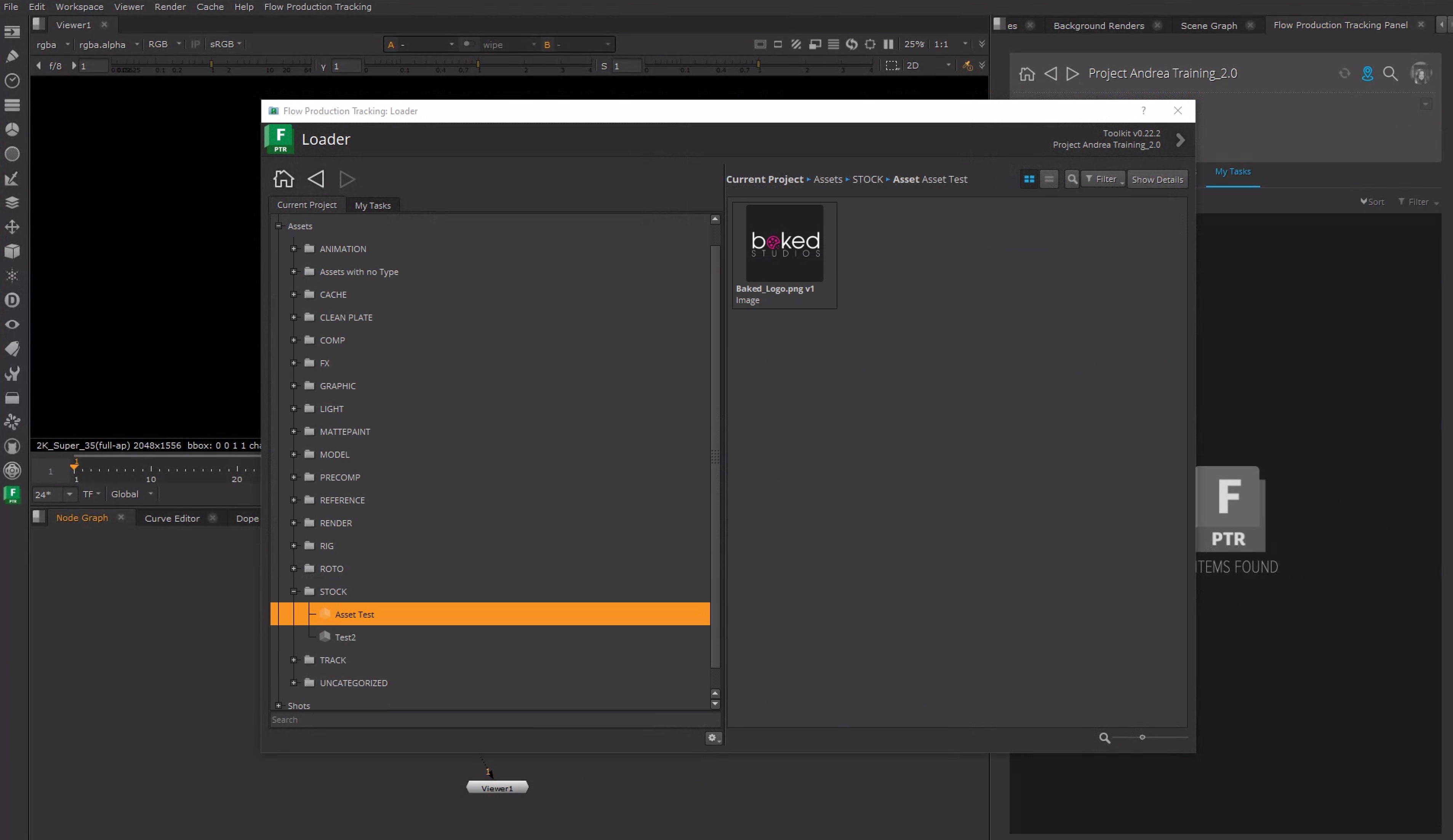
The artist in Nuke will then be able to load the published asset from its respective folder.