Part 5: Manage Notes
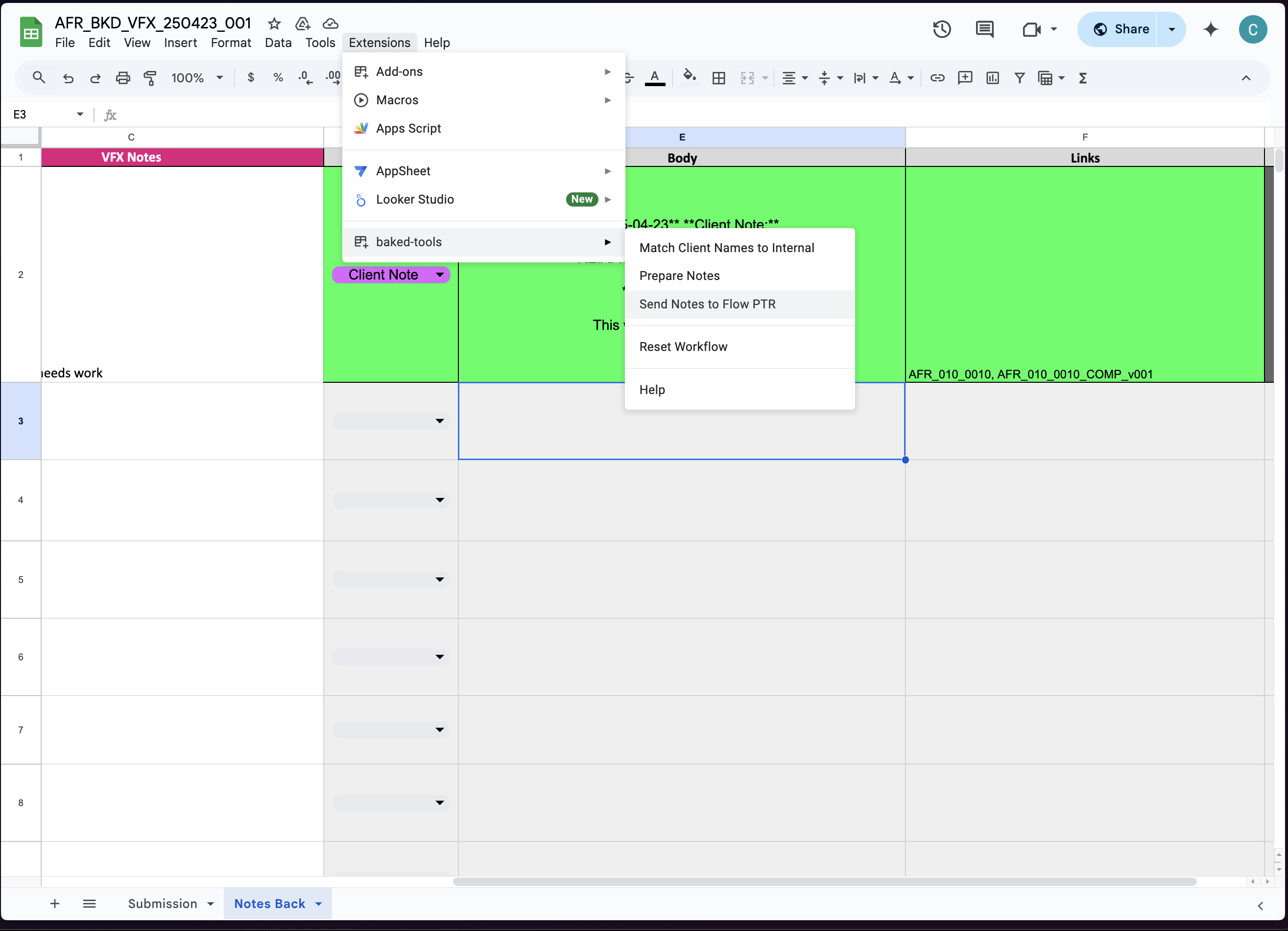
Another crucial part of the Coordinator's workflow is managing client feedback and notes. Within the Spreadsheet initially sent to client, there is a Notes Back tab where the client provides feedback for each shot. To automize the organization process, the coordinator can use the baked-tools available under the Extensions tab.
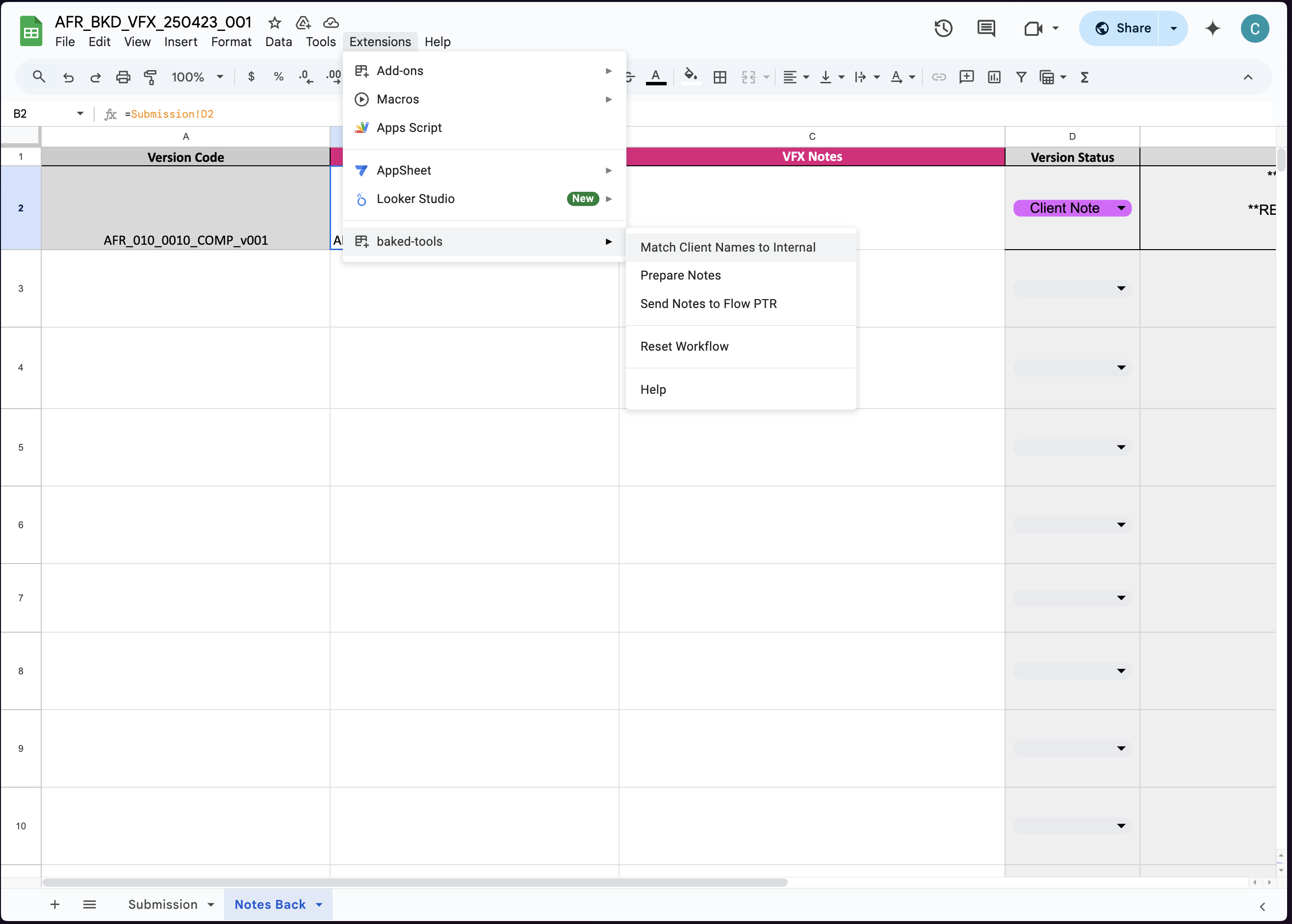
- The coordinator first matches client's shot names to Baked's internal codes. Then, prepares the notes for a more structured workflow within Flow Production Tracking.
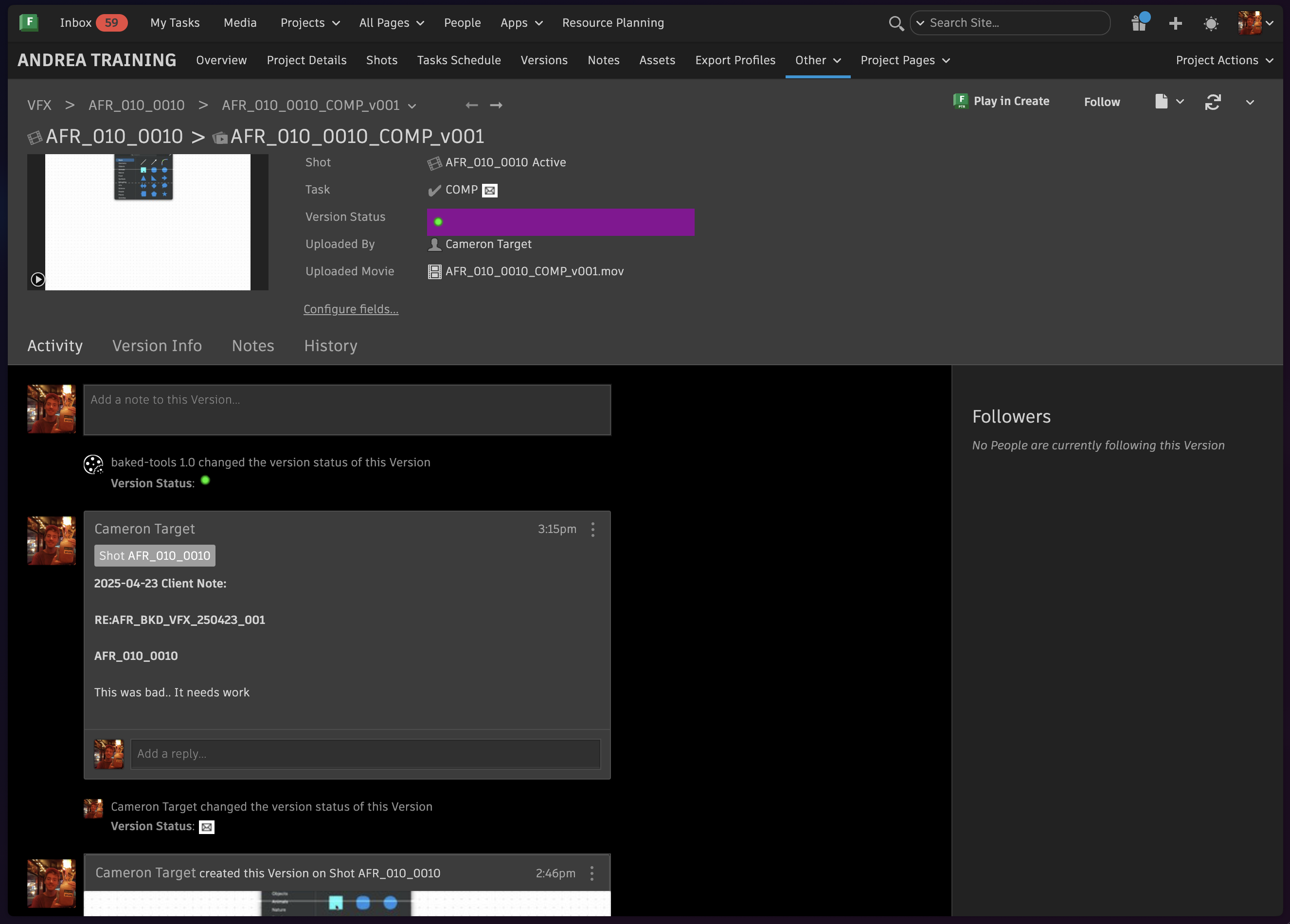
If client is not using this spreadsheet, make sure to include the following information when adding notes to artists within Shot Grid:
Artist Version name
mm/dd Client Feedback
Shot Name
Client Version: ###
Proceed to paste client feedback
- Once all notes are properly organized in the spreadsheet, the Coordinator can automatically send them to Flow Production Tracking by clicking Send Notes to Flow PTR—making the notes available for artists to begin addressing.
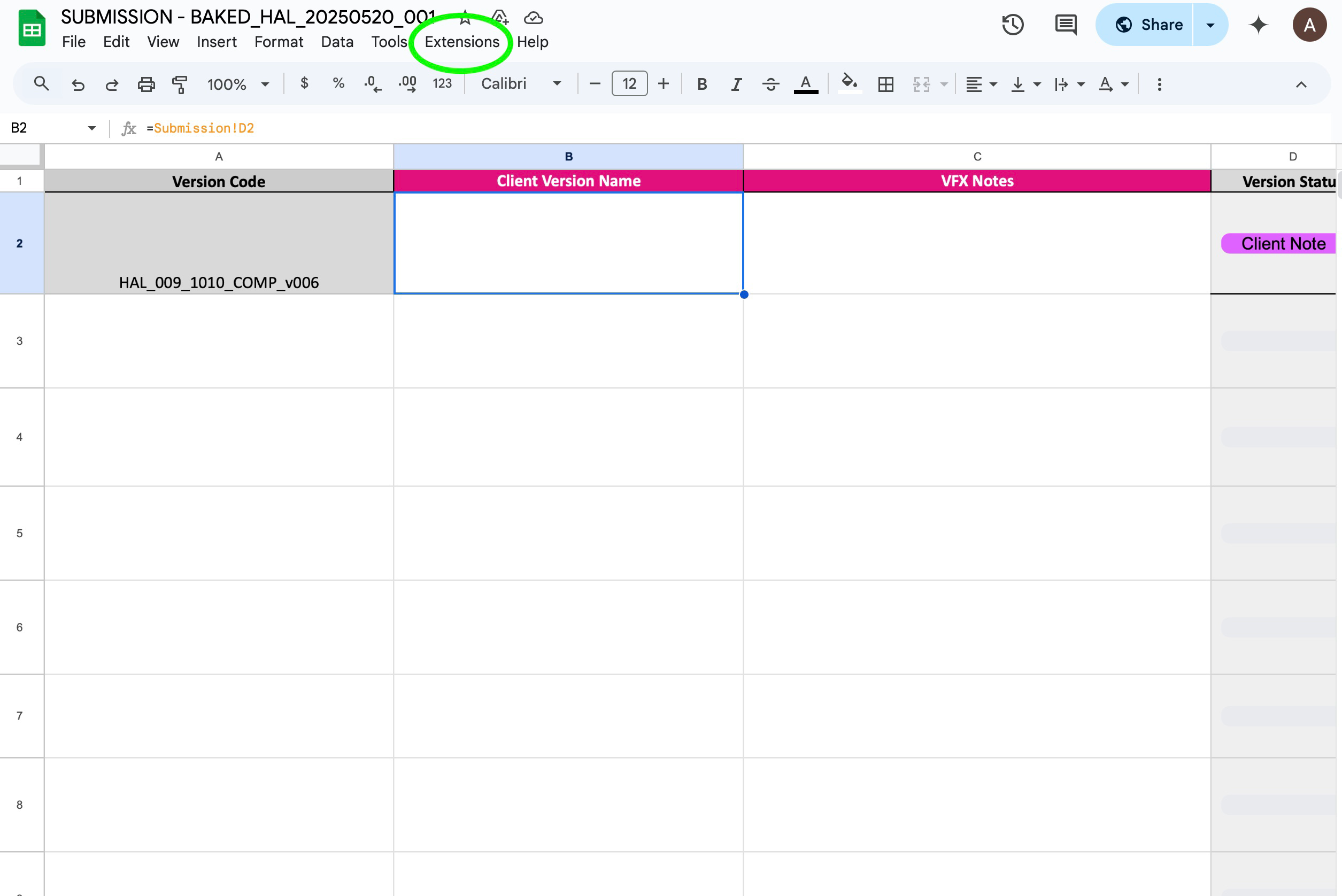
If you do not have access to baked-tools extensions on Google Sheets. You can follow these steps:
- Click on Add-ons > Manage add-ons under the Extensions tab
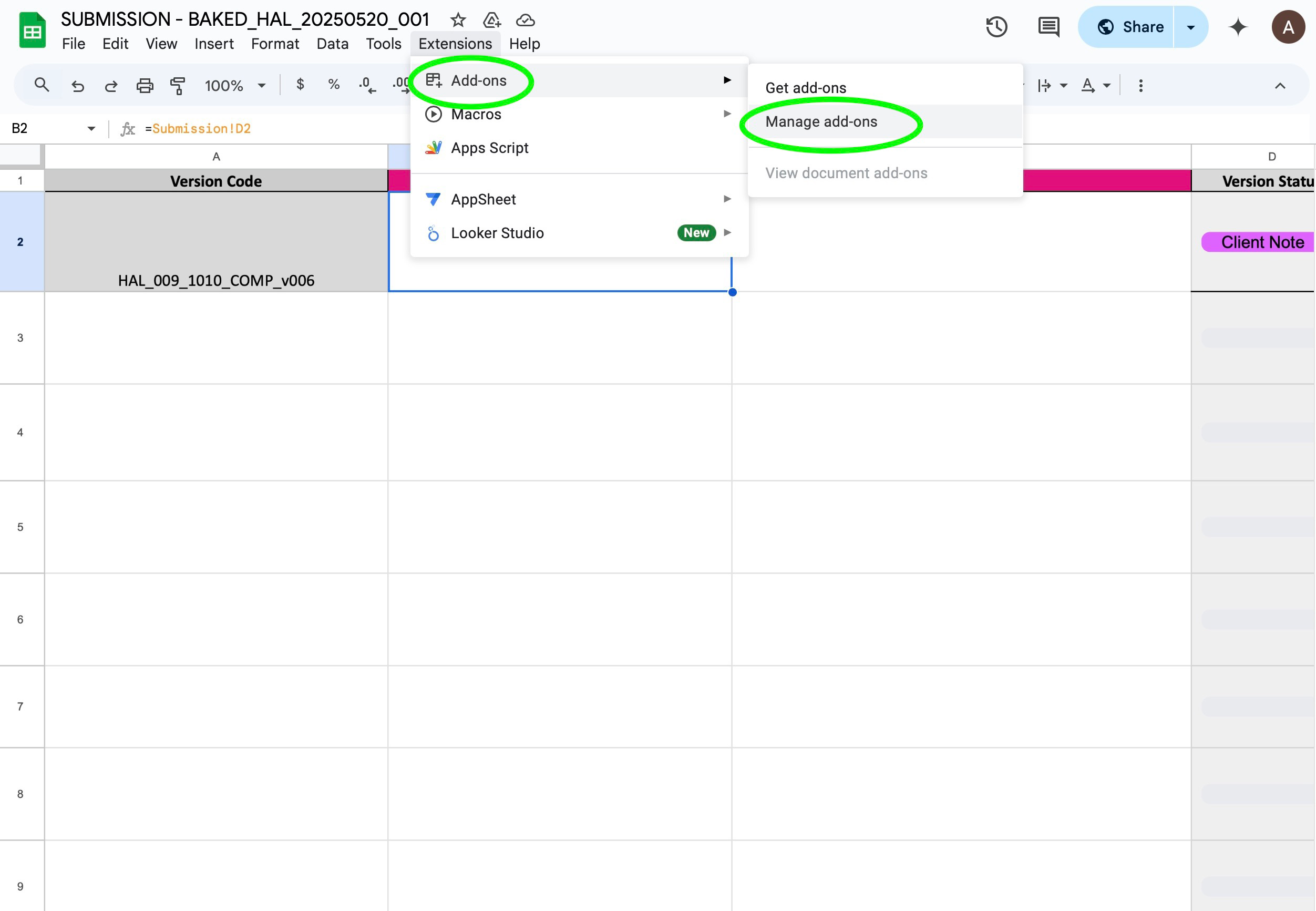
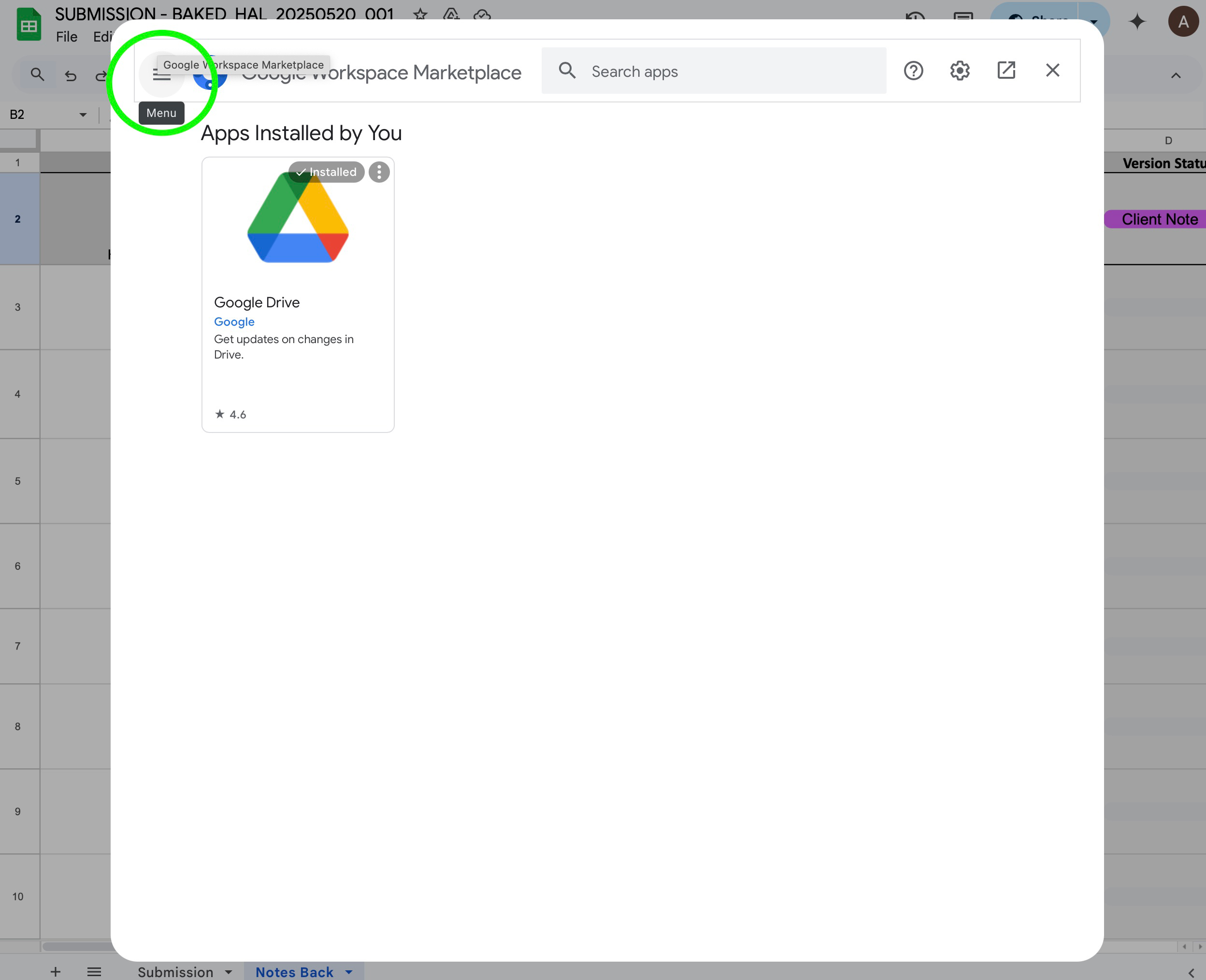
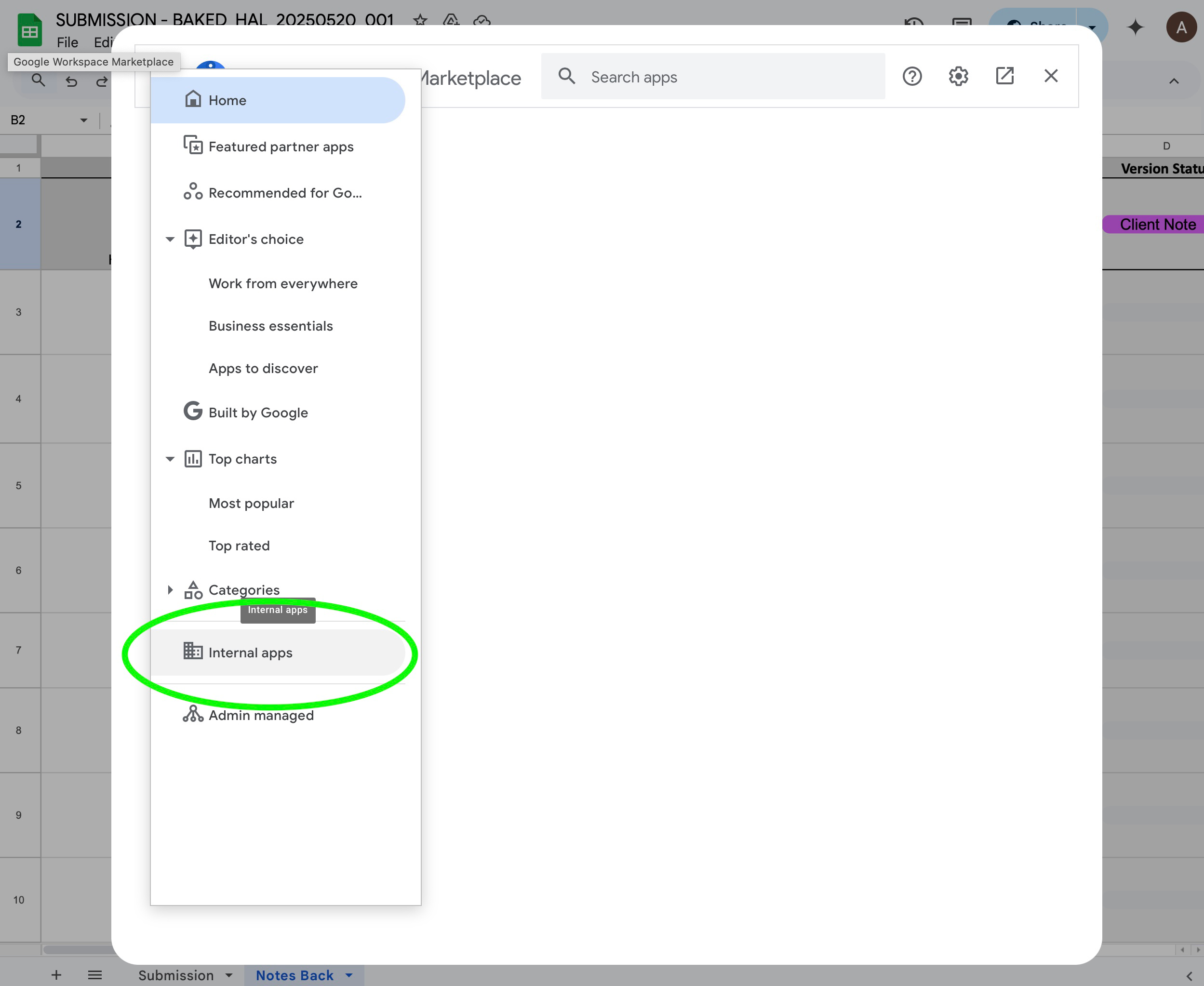
- Click on Menu > Internal Apps
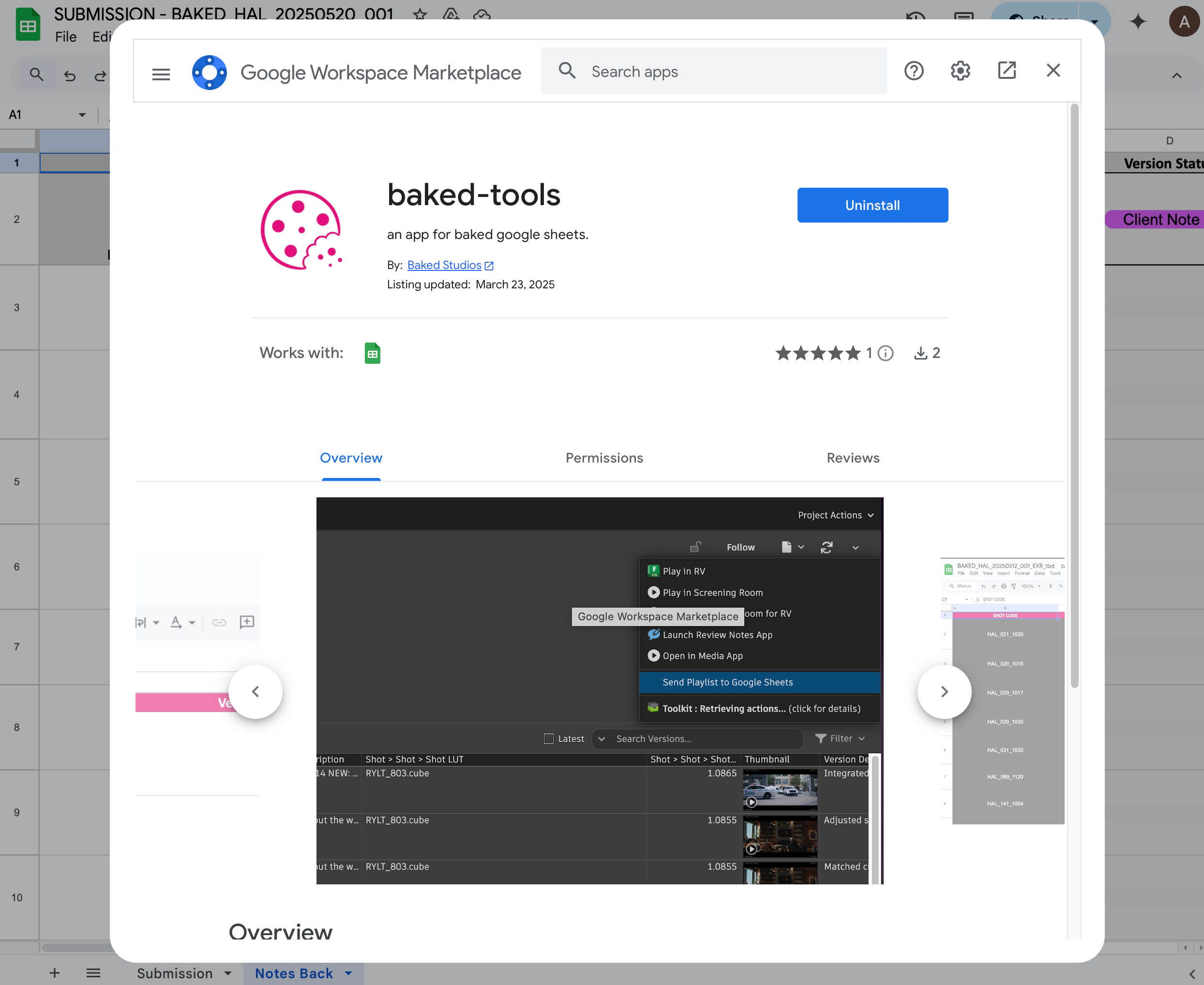
- Install baked-tools
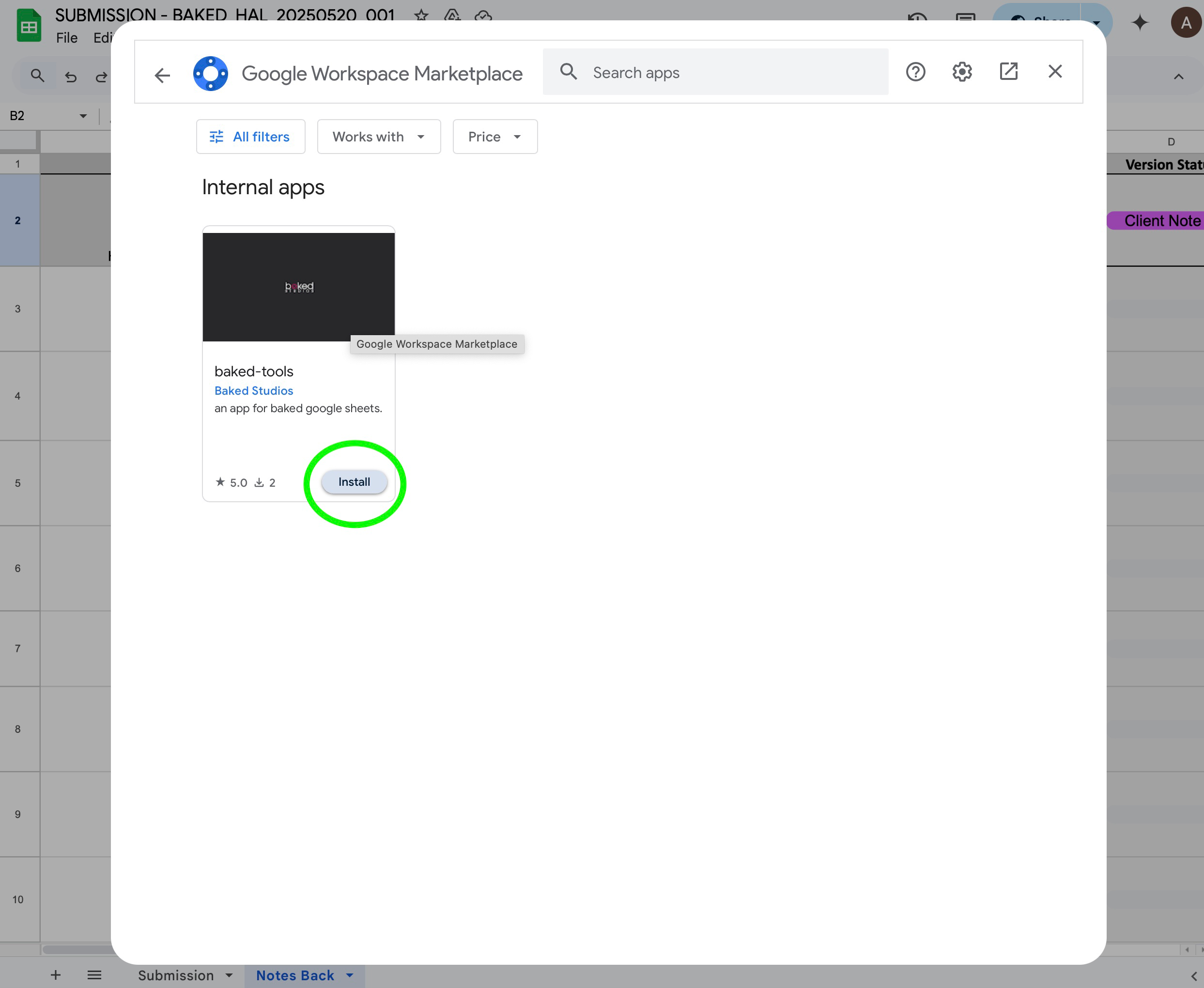
You need to use the email domain @wewarebaked.com for the app to become available for instalation.
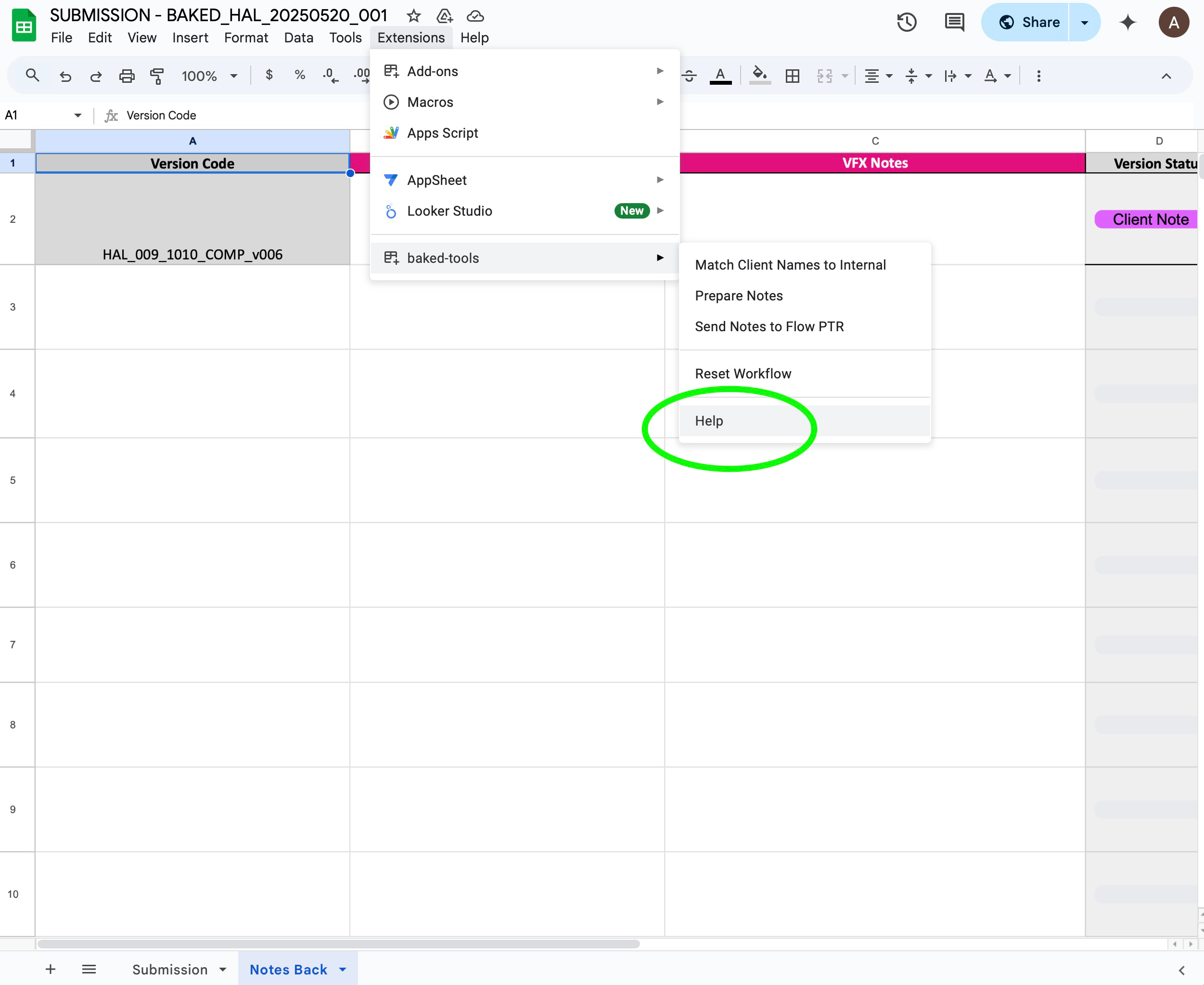
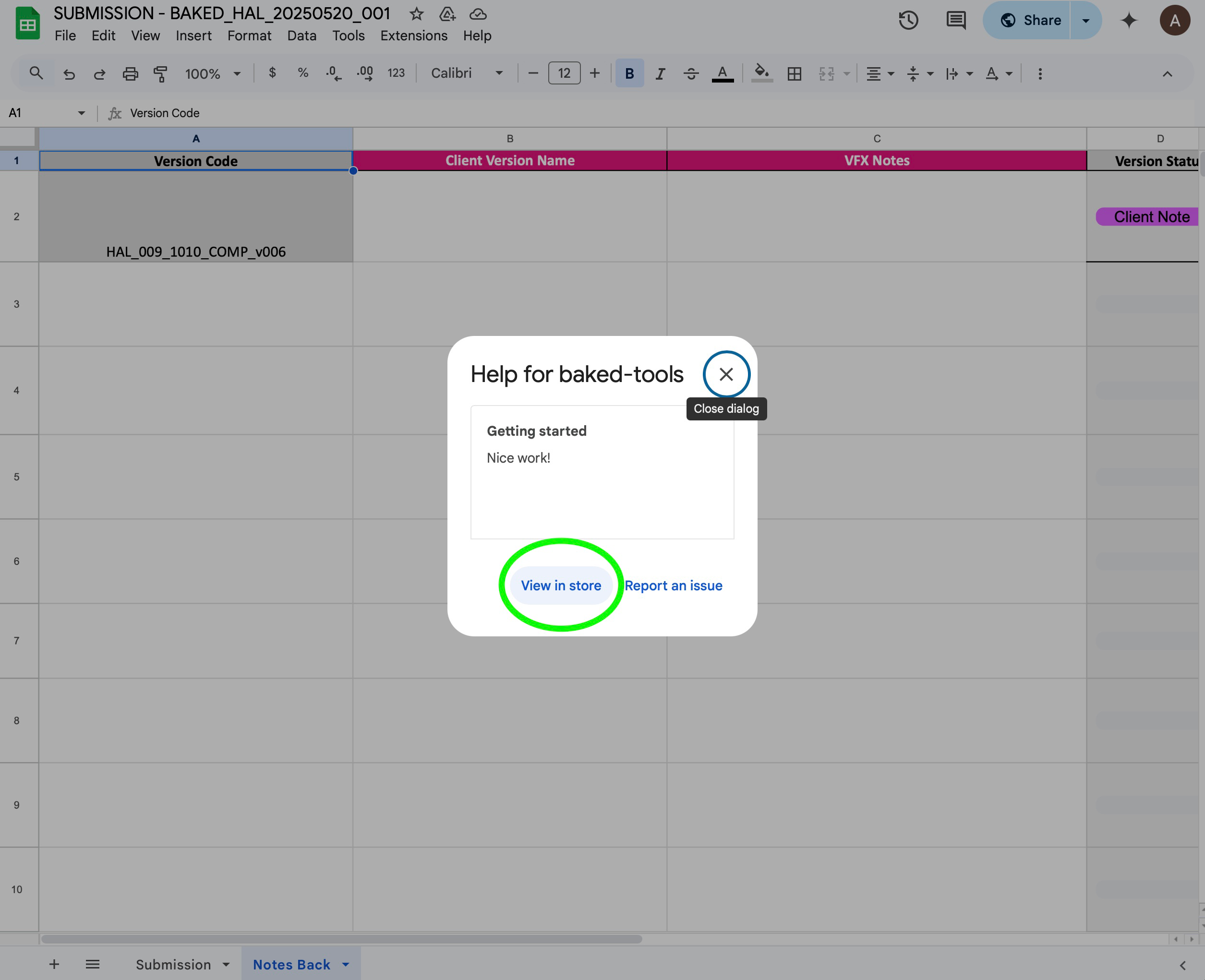
If you installed baked-tools and still don't see the needed tools, go to baked tools > help > view in store and re-install baked-tools